|
Import Image
|   |
|
Import Image
| |
File > Import Image lets you select one or more graphic image files and bring them into the Springboard story file.
Supported import formats include Windows Bitmap (BMP), Encapsulated PostScript (EPS), GIF, JPEG, Photoshop (PSD), PNG, Targa (TGA), TIFF, Windows Metafile (WMF), and Enhanced Metafile (EMF). Alpha channels are supported in BMP, Photoshop, PNG, Targa, TIFF, and Metafiles; a single level of transparency is supported in GIF files.
You can select the files to import in the usual file-selection dialog.
Springboard then shows you the files in a list:
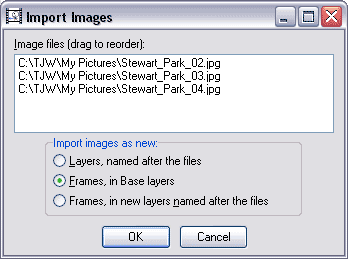
The files are in alphabetic order by default, but you may drag them up or down to reorder them.
You may also choose one of the radio buttons below the list to determine how the new images will be inserted:
When you press OK, Springboard checks the size of the input files. If some are larger than the frame size, it presents the Reduce Imported Images dialog:
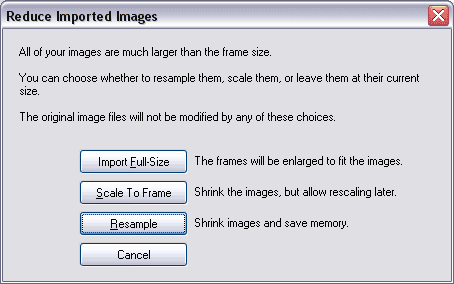
Resample is generally the right choice for background images; it discards the resolution that is not needed to display the image at the frame size. But, you can choose Scale To Frame to keep the full resolution internally if you plan to enlarge or crop the imported images later, or Import Full-Size if you want to import frames or layers at the full size of the image files.
Images are imported as full-color layers. Once imported, you can optionally convert them to spot-color layers with the Image > Convert command.
If you chose Scale to Frame, you can later restore the imported layers to their original scale with Layer > Reset Position.